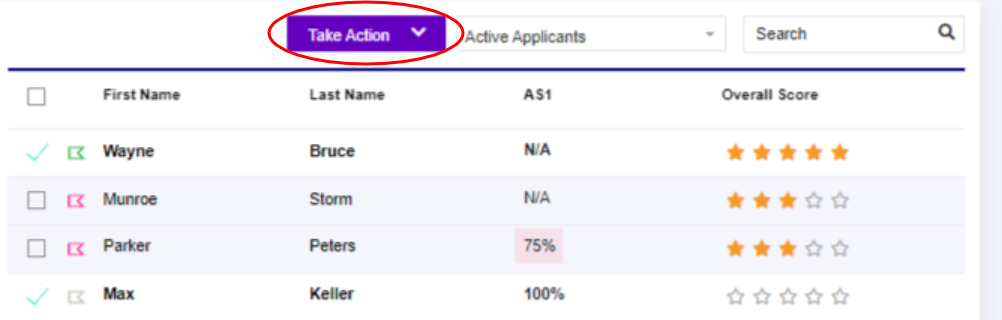
Bulk messages can be sent from the Applicant Queue of any job. A member of the hiring team can select a group of applicants and send individual emails to those applicants. The "select all" checkbox will select all applicants on the first page. You can narrow down the applicants that appear in the Queue by using the Active Applicants Filter tool then sort the results by clicking the Applicant Queue column headings.
Follow these steps to send bulk messages from the applicant queue:
- Select one or more applicants from the Applicant Queue using the checkboxes.
- Click the Take Action button and select Send Applicant Message(s).
- Enter the message Subject.
- Enter the message text in the Body.
- (Avoid using names in the text field as it will be seen by all recipients)
- Click SEND MESSAGE to confirm.
You may select a message from the "Message" drop down to automatically fill the subject and body of the message.
Once the message is sent, the Applicant Files for each recipient will be updated in the Applicant Message tab and in the Stream tab.